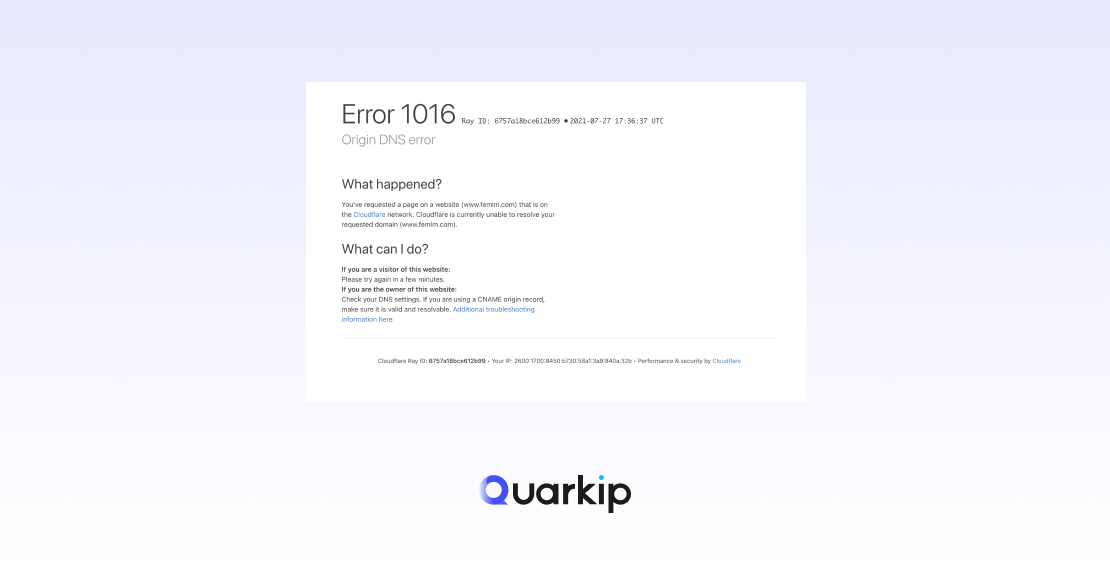
Cloudflare Error 1016 occurs when Cloudflare is unable to resolve the DNS (Domain Name System) of your origin server. Essentially, Cloudflare is trying to connect to your website, but it can’t find the correct IP address associated with your domain. This is usually because of a misconfigured DNS record or issues with your domain settings.
In this article, we’ll explain the causes of Cloudflare Error 1016, how it affects your website, and most importantly, how to resolve it.
What Causes Cloudflare Error 1016?
Cloudflare Error 1016 is a DNS resolution error, meaning Cloudflare cannot resolve the DNS records for your domain to determine where your website is hosted. The issue may arise from several possible causes:
1. Incorrect DNS Settings
The most common cause of Error 1016 is incorrect or misconfigured DNS records for your domain. If the A record or CNAME record doesn’t point to the correct IP address, Cloudflare won’t be able to connect to your server.
For instance, your DNS settings may have:
- An A record pointing to the wrong IP address.
- A CNAME record pointing to a non-existent subdomain.
- Missing or incorrect DNS entries for the root domain.
2. Missing DNS Records
If you’ve recently updated your DNS settings or transferred your domain to Cloudflare, it’s possible that some essential DNS records have been left out or incorrectly configured. Without these records, Cloudflare won’t be able to route traffic to your server.
3. DNS Propagation Issues
DNS changes take time to propagate across the internet, which typically takes between 24 to 48 hours. During this period, Cloudflare may encounter Error 1016 while trying to connect to your server, as not all DNS resolvers have updated records.
4. Cloudflare Configuration Error
Sometimes, the issue may lie within Cloudflare itself, particularly if there’s a problem with its configuration. If Cloudflare is improperly configured for your domain or DNS settings, it might not be able to resolve the DNS records correctly.
5. Nameserver Changes Not Fully Propagated
If you’ve recently switched to Cloudflare as your DNS provider, the nameserver changes might not have fully propagated. Until the new nameservers are live across all DNS resolvers, Cloudflare will not be able to resolve your domain correctly.
How to Fix Cloudflare Error 1016
If you’re encountering Cloudflare Error 1016, there are several steps you can take to diagnose and resolve the issue.
1. Verify DNS Records in Cloudflare
The first step is to check your DNS settings in Cloudflare:
- Log in to your Cloudflare account and go to the DNS section of your domain.
- Check the A record: Ensure that the A record points to the correct IP address of your origin server. If you are using a third-party service (like a hosting provider), double-check the IP address they have provided.
- Check the CNAME record: Ensure that the CNAME record points to the correct subdomain or target, especially if you’re using www or other subdomains.
- Verify other DNS records: Make sure that any other records (MX, TXT, etc.) are correctly configured.
If any record is incorrect or missing, update it with the correct values from your hosting provider or domain registrar.
2. Check Nameserver Settings
If you recently switched to Cloudflare or changed nameservers, ensure that your domain is using Cloudflare’s nameservers:
- Go to your domain registrar’s website (where you registered your domain).
- Update the nameservers to the ones provided by Cloudflare. You can find these in the Cloudflare dashboard under DNS Settings.
- Wait for DNS propagation: If you made recent changes to your nameservers, it could take up to 48 hours for the new settings to propagate.
3. Allow Time for DNS Propagation
If you recently made DNS changes or transferred your domain to Cloudflare, the new records may still be propagating. During this time, you might experience Error 1016 intermittently until the changes have fully spread across the internet.
To check the propagation status:
- Use tools like DNSstuff, MXToolbox, or WhatsMyDNS to verify that the DNS records have propagated globally.
- If propagation is still in progress, wait for the remaining resolvers to update.
4. Clear Cache and Retry
If your DNS settings are correct and DNS propagation is complete, but you still see Error 1016, it may be a caching issue. Cloudflare caches DNS records to reduce the number of requests it makes to your origin server. If Cloudflare is caching outdated DNS records, it might attempt to connect to an incorrect IP.
To fix this:
- Clear Cloudflare cache: Go to the Caching section in your Cloudflare dashboard and purge the cache.
- Clear your browser cache: Sometimes your browser might hold on to cached DNS records, so it’s a good idea to clear your browser cache or try a different browser.
5. Check Your Hosting Provider’s DNS Settings
Sometimes the issue lies not within Cloudflare, but within your hosting provider’s DNS settings:
- Contact your hosting provider and verify that their DNS settings are correct.
- Ensure your server’s IP address is properly configured to handle incoming requests from Cloudflare.
If your hosting provider is using a dynamic IP or DNS system, ensure that the DNS records in Cloudflare reflect the most up-to-date IP addresses.
6. Test with DNS Lookup Tools
You can also use DNS lookup tools to help you identify any issues:
- Use DNS lookup tools like Dig or NSLookup to check the DNS records associated with your domain. These tools can give you insight into whether the DNS records are correct and where they might be misconfigured.
When to Contact Cloudflare Support
If you’ve followed all of the steps above and Error 1016 persists, it may be time to reach out to Cloudflare Support for assistance:
- Provide them with logs and any relevant details, such as the specific DNS error message and any actions you have already taken.
- Cloudflare support can help troubleshoot DNS issues and verify if the issue is related to their system.
Conclusion
Cloudflare Error 1016 is caused by problems with your domain’s DNS configuration. It can happen due to incorrect DNS records, missing records, DNS propagation delays, or issues with Cloudflare’s settings. By following the steps in this article to verify and update your DNS settings, check nameserver configurations, and allow time for DNS propagation, you can resolve Error 1016 and get your website back online.
Proper DNS management is critical for ensuring smooth communication between Cloudflare and your origin server. Regularly monitor your DNS settings and use the right tools to troubleshoot and avoid such errors in the future.