If you want a more stable experience with Janitor AI, setting up a proxy is one of the most effective solutions.
In many cases, connection issues are not caused by the platform itself. Instead, they are often related to network routing or IP restrictions. Therefore, using a proxy can significantly improve overall performance.
With the right setup, you can:
- reduce connection errors
- bypass IP restrictions
- improve API response reliability
In the following sections, you’ll learn exactly how to configure everything step by step.
When Should You Use a Proxy?
Before jumping into the setup process, it’s important to understand when a proxy is actually needed.
For example, you should consider using a proxy if you encounter:
- frequent “Failed to Fetch” errors
- repeated IP bans
- slow or inconsistent responses
In these situations, the issue is usually related to your network environment. As a result, a proxy can help stabilize the connection and reduce failures.
Step 1 Choose the Right Proxy Type
First of all, selecting the correct proxy type is crucial.
Different proxies serve different purposes. Therefore, choosing the right one directly impacts performance.
Here are the main options:
- Residential proxy → best for stability and low detection risk
- ISP proxy → balanced performance and reliability
- Datacenter proxy → faster but easier to detect
For most users, residential or ISP proxies are the safest choice. On the other hand, datacenter proxies are better suited for low-risk scenarios.
Step 2 Get Your Proxy Credentials
Once you’ve chosen a provider, you will receive several key details.
Typically, these include:
- IP address
- port
- username
- password
Make sure to store this information securely. Otherwise, incorrect credentials may cause connection failures later.
Step 3 Configure the Proxy
Next, you need to configure the proxy in your environment. Depending on your setup, there are several ways to do this.
Option A Browser Setup
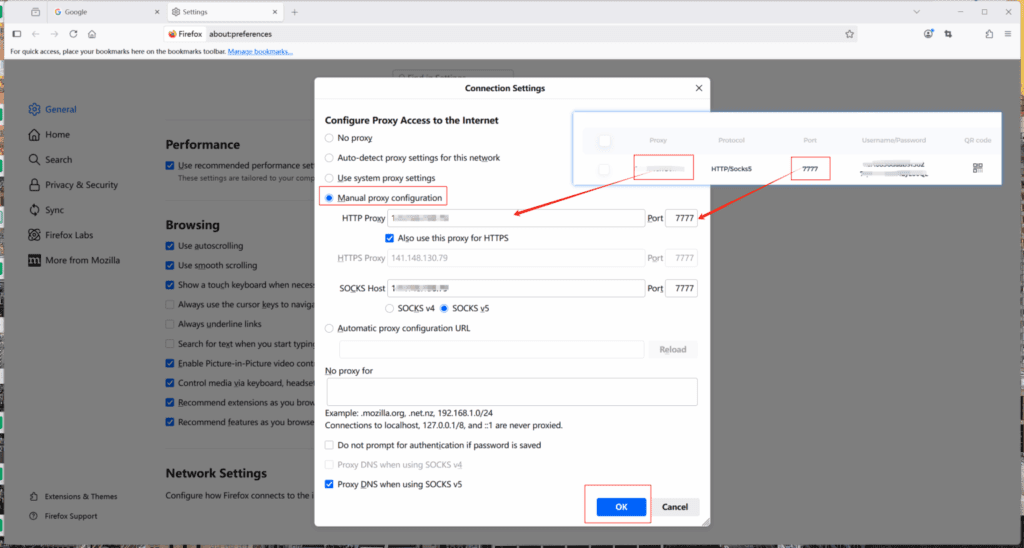
If you prefer a simple approach, configuring the proxy directly in your browser is a good starting point.
To do this:
- open browser settings
- locate proxy configuration
- enter your credentials
After that, restart the browser to ensure the settings take effect.
Option B System-Level Setup
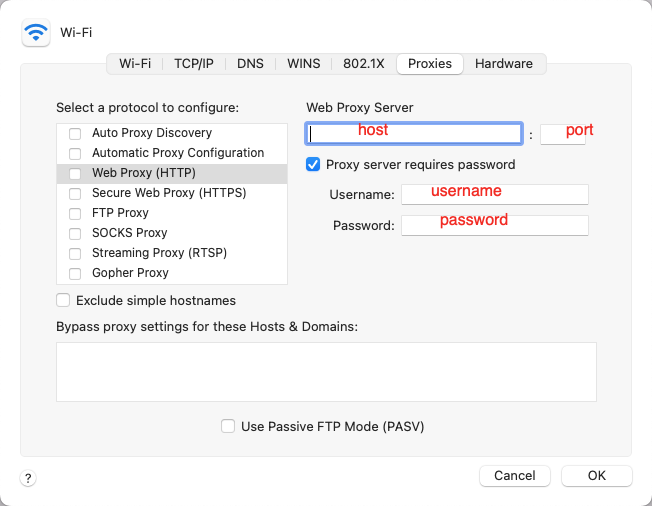
Alternatively, you can configure the proxy at the system level.
This method applies the proxy to all applications, not just your browser.
For example:
- Windows → Network Settings
- macOS → System Preferences
Although this approach takes slightly more effort, it provides broader coverage.
Option C Third-Party Tools
In addition, some users prefer dedicated proxy management tools.
These tools simplify the process and often provide extra features such as:
- automatic IP rotation
- session control
- performance monitoring
As a result, they are especially useful for advanced users.
Step 4 Connect to Janitor AI
After the proxy is active, you can test it with Janitor AI.
Simply follow these steps:
- open the platform
- log in to your account
- start a conversation
If everything is configured correctly, requests should now route through the proxy. Consequently, connection stability should improve.
Step 5 Test and Optimize
At this stage, it’s important to verify that the setup is working properly.
For instance, send multiple messages and observe:
- response speed
- connection success rate
- frequency of errors
If performance improves, then your proxy is functioning as expected. However, if issues persist, further adjustments may be needed.
Common Setup Mistakes
Even with a correct setup, certain mistakes can still cause problems. Therefore, it’s important to check the following.
Incorrect Credentials
One of the most common issues is incorrect login information.
Always double-check:
- IP address
- port number
- username and password
Even a small typo can prevent the connection from working.
Choosing the Wrong Proxy Type
Not all proxies perform equally.
For example, low-quality proxies may still trigger bans. In contrast, high-quality residential IPs are much more reliable.
Poor Location Selection
Another common issue is choosing the wrong server location.
If the proxy server is too far from the target service, latency will increase. As a result, response times may become slower.
Pro Tips for Better Performance
To get the best results, consider the following tips:
- use sticky sessions for consistent connections
- avoid switching IPs too frequently
- monitor response times regularly
In addition, maintaining a stable configuration helps prevent unexpected errors.
Final Thoughts
Setting up a proxy for Janitor AI may seem technical at first. However, once configured correctly, it can significantly improve your experience.
Not only does it reduce errors, but it also helps maintain stable connections over time.
Ultimately, whether you’re dealing with IP bans, connection failures, or inconsistent performance, a well-configured proxy can make a noticeable difference.