
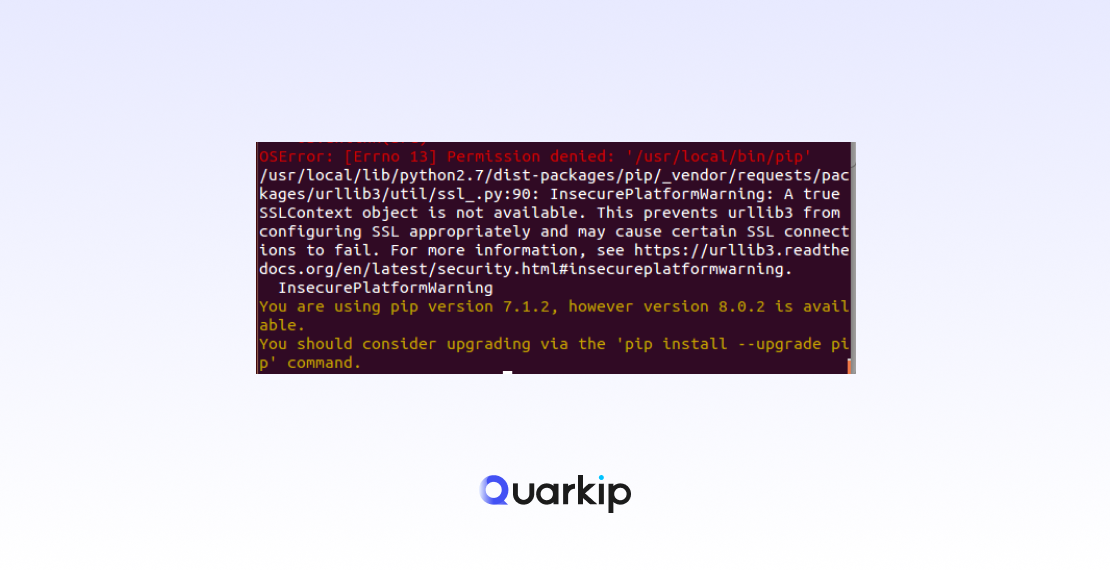
If you’ve ever tried to install a Python package using pip and encountered a “Permission Denied” error, you’re not alone. This is one of the most common issues developers face when working with Python environments.
Whether you’re using Windows, macOS, or Linux, this error can prevent you from installing critical dependencies—and slow down your development workflow.
In this guide, you’ll learn why this error happens and how to fix it step by step.
What Causes Pip Install Permission Denied Errors?
Before jumping into solutions, it’s important to understand the root causes. In most cases, this error happens due to one of the following reasons.
1. Insufficient System Permissions
On Unix-based systems like macOS and Linux, installing packages globally often requires elevated permissions. Without them, pip cannot write to system directories.
2. Installing Outside a Virtual Environment
If you’re installing packages directly into the global Python environment, permission conflicts are more likely to occur.
3. Conflicts with System Package Managers
Some systems (like Debian/Ubuntu) restrict pip from modifying system-managed Python environments. This can trigger errors such as:
- externally-managed-environment
- permission denied
- operation not permitted
4. Incorrect Python or Pip Configuration
Sometimes pip is linked to a different Python version or installed in a restricted directory.
How to Fix Pip Install Permission Denied Error
Now let’s go through the most effective solutions. Depending on your setup, you may only need one of these.
Solution 1: Use Administrator or Root Privileges
If you’re installing packages globally, try running pip with elevated permissions.
macOS / Linux:
sudo pip install package_name
Windows:
- Open Command Prompt or PowerShell as Administrator
- Run:
pip install package_name
👉 However, this method is not always recommended, as it can affect system stability.
Solution 2: Use the –user Flag (Recommended)
A safer approach is to install packages only for your current user.
pip install package_name --user
This avoids modifying system directories and works well in most cases.
Solution 3: Use a Virtual Environment (Best Practice)
Using a virtual environment completely avoids permission issues and is considered the best practice.
Step 1: Create a virtual environment
python -m venv myenv
Step 2: Activate it
- macOS / Linux:
source myenv/bin/activate
- Windows:
myenv\Scripts\activate
Step 3: Install packages
pip install package_name
This ensures all packages are isolated from the system environment.
Solution 4: Fix Externally Managed Environment Issues
On newer systems (especially Debian/Ubuntu with Python 3.12+), you might see:
externally-managed-environment
To bypass this restriction, use:
pip install package_name --break-system-packages
⚠️ Use this carefully, as it overrides system protections.
Solution 5: Upgrade Pip and Python
Outdated tools can also cause permission-related errors.
python -m pip install --upgrade pip
You can also verify your Python and pip paths:
which python
which pip
(or where on Windows)
Best Practices to Avoid This Error
To prevent this issue in the future, follow these best practices:
- Always use virtual environments for projects
- Avoid using sudo unless absolutely necessary
- Keep pip and Python updated
- Don’t mix system package managers (apt, brew) with pip unnecessarily
Conclusion
The pip install permission denied error is common, but easy to fix once you understand the cause.
In most cases, using a virtual environment or the --user flag will solve the problem quickly and safely. For system-level restrictions, newer flags like --break-system-packages can help—but should be used with caution.
If you’ve also encountered the externally managed environment error, make sure to check out our detailed guide for a deeper explanation.