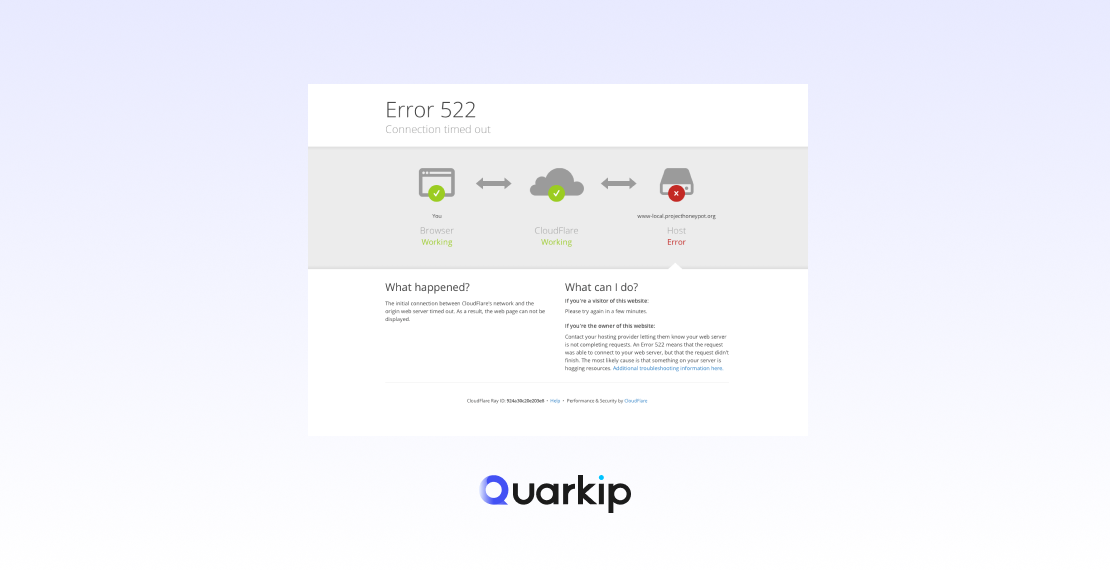
Cloudflare Error 522 occurs when Cloudflare is unable to establish a connection to your origin web server. This error typically indicates that Cloudflare is trying to reach your server, but it’s not responding in a timely manner. Instead of seeing your website, users are greeted with a “Connection Timed Out” message.
This error is often caused by network issues, server configurations, or DNS problems. In this article, we’ll explain the reasons behind Cloudflare Error 522 and how to resolve it effectively.
What Causes Cloudflare Error 522?
1. Origin Server Timeout
The most common cause of a Cloudflare Error 522 is that your origin server, where your website is hosted, takes too long to respond to Cloudflare’s request. If the server takes more than 100 seconds to respond, Cloudflare will timeout and display the Error 522 message.
Reasons for Origin Server Timeout:
- High server load: Your server may be overwhelmed by too many requests or insufficient resources (CPU, RAM).
- Slow database queries: Your database may be running inefficient queries, which delay the server response.
- Network issues: If your server’s network connection is slow or unstable, Cloudflare won’t be able to establish a timely connection.
2. Firewall Blocking Cloudflare IPs
Cloudflare uses a range of IP addresses to connect to your origin server. If your firewall is blocking these IP addresses, Cloudflare will not be able to reach your server, leading to Error 522. Some security plugins, firewall settings, or server configurations may unintentionally block Cloudflare’s IPs.
3. DNS Configuration Problems
Incorrect DNS settings can prevent Cloudflare from connecting to your origin server. If your DNS records are misconfigured, such as pointing to the wrong IP address or if there are missing records, Cloudflare cannot route traffic to your server correctly, triggering a 522 error.
4. Server Overload or Maintenance
If your origin server is under maintenance, or if it’s struggling to handle the traffic load (due to lack of resources or issues like DDoS attacks), it may not respond to Cloudflare in time, causing Error 522.
5. Rate Limiting or Server Throttling
Some hosting providers limit the number of requests or connections that can be made to their servers over a specific time period. If your website is receiving high traffic, the server might throttle or block Cloudflare’s connection attempts, resulting in Error 522.
How to Fix Cloudflare Error 522: Solutions
1. Check Server Load and Resources
Ensure that your server has enough resources to handle incoming traffic. You can:
- Upgrade your hosting plan to increase CPU and RAM capacity.
- Optimize your server configurations to handle more traffic.
- Implement caching to reduce server load for repeated requests.
Use server monitoring tools (like htop or top on Linux) to check server health and resource usage.
2. Ensure Proper Firewall Configuration
If your server’s firewall is blocking Cloudflare’s IP addresses, you will need to whitelist them. You can find the list of Cloudflare IP ranges on their official website.
Steps to Whitelist Cloudflare IPs:
- If using CSF (ConfigServer Firewall), add Cloudflare’s IPs to the
/etc/csf/csf.allowfile. - If using Cloudflare’s WAF (Web Application Firewall), make sure that your rules aren’t blocking Cloudflare’s IPs.
- Check any security plugins installed on your server (e.g., Wordfence, Sucuri) that may block or limit Cloudflare’s IP addresses.
3. Update DNS Settings
Verify your DNS settings to ensure they point to the correct server IP address. To do this:
- Double-check the A record: Ensure your domain’s A record in Cloudflare is pointing to the correct IP address of your origin server.
- Use DNS tools: Use tools like DNSstuff or MXToolbox to check your DNS configuration.
- DNS propagation: If you’ve recently changed your DNS records, it might take up to 24 hours for changes to propagate across the internet.
4. Monitor Server Availability
Check if your server is under maintenance or facing any temporary downtime. You can:
- Contact your hosting provider to confirm server status and availability.
- Set up ping monitoring (using tools like Pingdom or UptimeRobot) to alert you in case your server becomes unavailable.
- Ensure automatic restarts in case of server failures or crashes.
5. Mitigate Rate Limiting and Server Throttling
If your hosting provider is throttling requests due to high traffic, you may need to:
- Upgrade to a higher-tier hosting plan with more resources or a dedicated server.
- Optimize your web server settings (e.g., for Apache, Nginx, etc.) to handle more concurrent connections.
- Enable Cloudflare caching to reduce the number of requests hitting your origin server and lessen the load.
Cloudflare Caching Settings:
- Enable Edge Caching on Cloudflare to reduce the number of requests sent to your server.
- Set up cache rules in Cloudflare to ensure static resources like images, CSS, and JavaScript are cached efficiently.
6. Use Load Balancing or CDNs for Scalability
If your server is consistently facing high traffic, you can use load balancing to distribute traffic across multiple servers or data centers. This can help prevent server overloads and ensure your website stays online during peak traffic periods.
When to Contact Cloudflare Support
If you’ve tried the solutions above and still see Error 522, it may be necessary to contact Cloudflare Support. They can assist in investigating issues related to their service or provide additional guidance based on your setup.
- Check Cloudflare’s status page: Sometimes, Cloudflare itself might experience issues. Visit the Cloudflare Status page to see if they are experiencing any outages.
- Provide logs: When reaching out to support, provide logs or error messages from your server and Cloudflare’s dashboard to help diagnose the issue.
Conclusion
Cloudflare Error 522 is commonly caused by server issues, firewall misconfigurations, or DNS problems. By following the solutions outlined in this article, you can quickly resolve this error and get your website back online.
If you continue to experience problems, reach out to your hosting provider or Cloudflare support for additional assistance. With proper server configuration, firewall settings, and DNS updates, you can ensure that Cloudflare connects to your server smoothly without any timeouts.